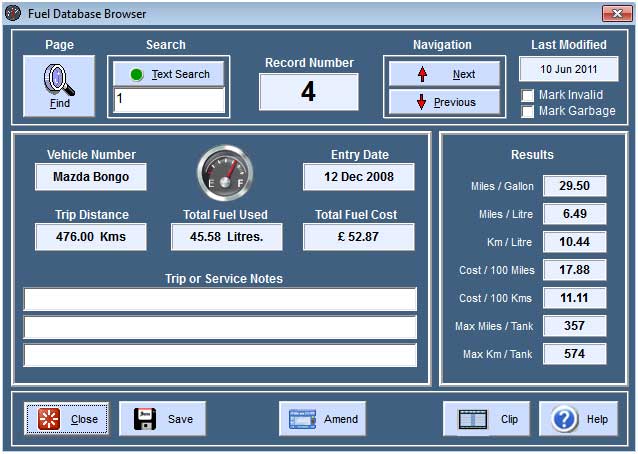

Record Browser
The record browser allows you to Browse all the records in the database. All records are displayed in the order they were posted to the database from the main Calculator page. You can add trip notes or service information to remind you of any detail that may be relevant to the trip or why this particular record may not be valid. You can use the Search function to search the database Trip.Notes.
When you start a New database, it's a good idea to use a Trip.Note line on the first entry, to record your vehicle Total odometer value. You can use this to compare Total Mileage recorded in the database with your actual odometer reading, for example: "Database started at 56,789 Miles " or Kilometres.
Navigation Next Button
Clicking the Next button displays records in an increasing sequence. To avoid flashing through several records when searching with the Next button, the mouse clicks do not repeat, if you want to scroll through the records using the keyboard then press Alt + N for Next but be aware that these keys will repeat. If the Next button is focused then simply use the N key, or the Enter key if the Next button has the focus.
Navigation Previous Button
Clicking the Previous button displays records in a decreasing sequence.
Find Button
The Find controls are located at the top left of each page and are used to search for snippets of text within the Trip.Notes, or go directly to any record number. When you first run the program, the default mode is Record.Mode and the Find button is coloured light blue. The text box shows the number 1 and by simply clicking the Find button, record number 1 will be displayed. You can enter any record number in the text box below the Text.Search button and click the Find button to go directly to that record number.
Text Search Mode
You can search for specific text on any page. The function searches for text in the Trip.Notes only. When you click the Search.For.Text button, the Find button changes colour to yellow and the text button caption changes to Stop.Search. Enter the text you want to search for in the text box below the button, and then press the Find button. The program starts a search from record 1 and searches for the required text. If the text is found within a record then that record is displayed and the line containing the text is highlighted with a yellow background. If you Find the record you are interested in, then click the Stop.Search button to terminate the search function.
If you find the record you are looking for, you can click the Find button again to search for the next occurence of the same text. When all matching entries have been found, the Record.Number box will change colour to red to notify you that no more entries were found. Clicking the Find button again will terminate the search function.
If there is no matching text within the database, then a message box is displayed to notify you and the search is terminated. You can then choose to find different text using the same search procedure. IIf you click either of the navigation buttons while searching, the search will terminate and the Next or Previous record in sequence will be displayed.
Character case is not important while searching for text. The routine will find any matching text whether it's in lower or upper case.
Last Modified
If you change and Save this record, it's modified date is changed to today's computer date.
Mark Invalid
You can Mark an individual record as Invalid. If you click the appropriate checkbox in the top right corner of the page, the record will not be used when calculating average fuel consumption. If a box is Ticked then it's Marked.
Mark Garbage
You can Mark an individual record for deletion. If you click the appropriate checkbox in the top right corner of the page, the record can be deleted when you next re-build the database.
Clip Button
While Browsing, you can copy the page to the Windows.Clipboard in a set format which can be pasted into any text editor.
Text is copied as Plain Text. The columns will NOT line up if your Editor is set to use a Proportional.Font. The Font used here is Courier.New which is a Mono.Spaced Font.
Mercedes Car 1 Jan 2011
---------- Totals ----------
Trip Miles: 600.00
Fuel Used Litres: 100.00
Fuel Cost Pounds: 135.00
Tank Size Litres: 55.00
--------- Results ----------
Miles Per Gallon: 27.28
Miles Per Litre: 6.00
Kilometres Per Ltr: 9.66
Cost Per 100 Miles: 22.50
Cost Per 100 Kmtrs: 13.98
Max Miles Per Tank: 330
Max Kmtrs Per Tank: 531
----------------------------
Amend Button
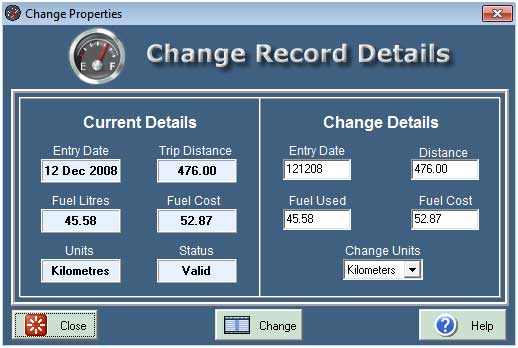
You can change the details of the displayed page using the Amend function.
Current Details
The values shown are the current record details. If you change any values and then press the Change.Button, the values here will change to reflect the new record details.
Status
The Status panel will display the current status of the record. It can be - Valid - Invalid - Garbage - which depends on the State of the tick boxes on the Browsing page. If you are amending a Valid record, you can only Save valid data. If the Status is Invalid or Garbage then you cannot Amend the record, it would be pointless to do so as Invalid or Garbage records are not used when producing Average results.
Be aware that records Marked as Garbage can be Deleted when Rebuilding the data file. If you want to Restore a record to a Valid.Status then Un-Mark and save the appropriate boxes on the Browsing page.
Entry Date
Dates are enered in a 6 figure format DDMMYY, you must enter all 6 numerals. If you enter an Invalid date, then an error message will be displayed when you click the Change button. If you enter 131210 in a date box it will be displayed as 13 Dec 2010. Enter single numeric parameters as 01 02 03 (1st February 2003).
Change Button
If you change any record details, then click the Change button to save the changes. These changes are temporarily recorded and will only be permanent when you Save the details in the Browsing page.

Copyright © Ben Bruce - BSB Applications - Freeware.